



How to Change eCitizen Phone Number
Wondering how to change eCitizen phone number linked to your account — whether you simply got a new line or lost your old SIM entirely? Either way, it’s the same self-service process from your dashboard, and losing the old number is not a blocker, since the OTP goes to the new number you’re adding, not the old one. Here are the 7 steps in order.
To change your eCitizen phone number, log in, open your profile dashboard, click the option to change your number, enter your password to authenticate, type in the new number, then enter the OTP sent to that new number and click Save.
- Log in at accounts.ecitizen.go.ke
- Open your profile dashboard
- Click the option to change your phone number
- Enter your eCitizen password when prompted
- Type in your new phone number
- Enter the OTP sent by SMS to the new number
- Click Save to finish
Lost your old line? That’s fine — this same process works whether you’re simply updating to a new number or replacing a SIM you lost entirely. The verification code goes to the new number, not the old one, so you don’t need access to the old line at all.
Log In to Your eCitizen Account
Go to accounts.ecitizen.go.ke and log in using your existing eCitizen ID number and password.

The eCitizen login page at accounts.ecitizen.go.ke.
- Visit accounts.ecitizen.go.ke/en/login
- Enter your ID number and password, then click Login
Open Your Profile Dashboard
Once logged in, navigate to your profile dashboard. This is where your registered email address and phone number are both displayed.

Your eCitizen dashboard, showing your current phone number and email.
- Click on your profile or account icon to open the dashboard
- Confirm you can see your current phone number listed
Click the Phone Number Change Option
Next to your phone number on the dashboard, click the option to change it. A popup window will open to start the process.
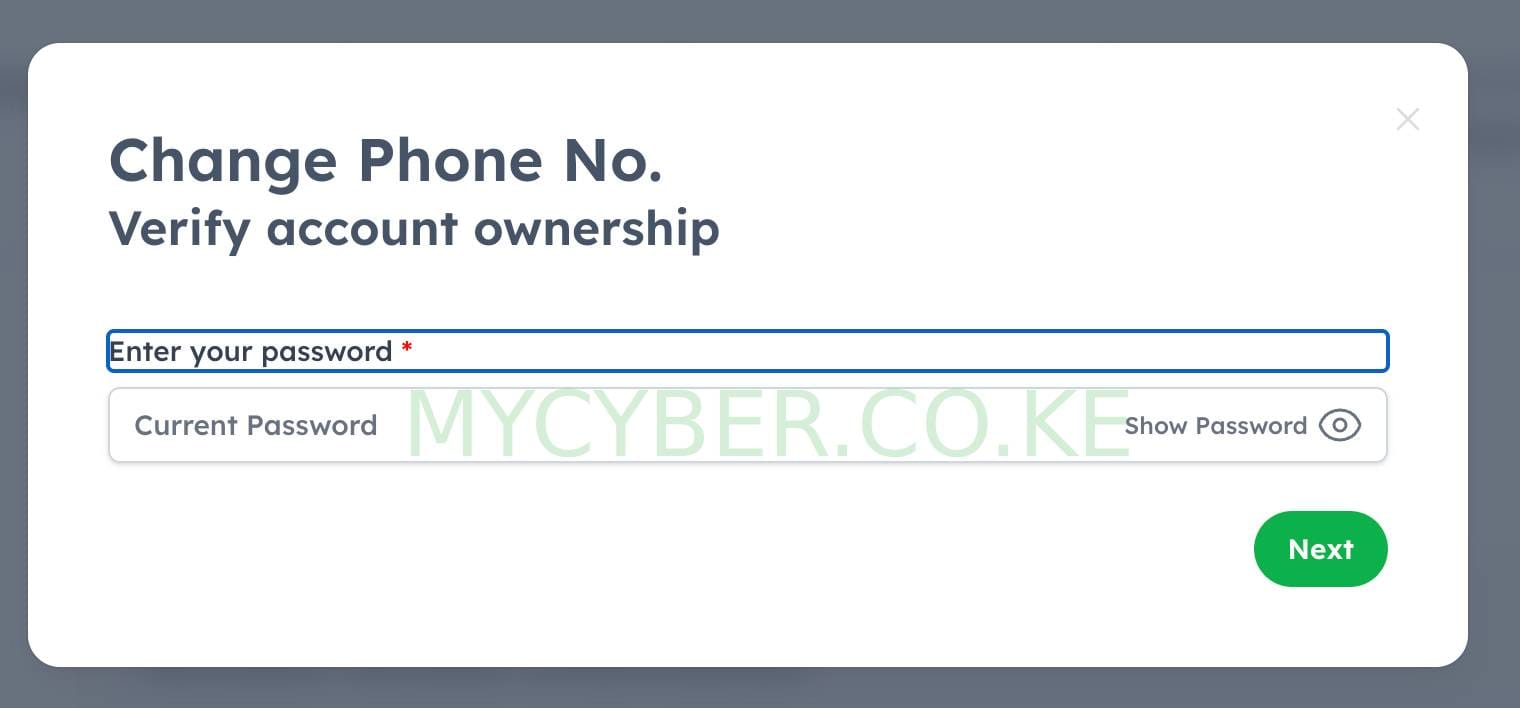
The popup that appears when you choose to change your registered phone number.
- Locate the “Change” link or icon beside your current phone number
- Click it to open the update popup
Enter Your eCitizen Password
Before allowing any change, eCitizen asks you to re-enter your current account password. This confirms it’s really you making the request — and it’s the only credential needed, even if you’ve lost access to the old phone number entirely.
- Type in your current eCitizen password exactly as you set it
- Click Confirm or Authenticate to proceed
Enter Your New Phone Number
Once your password is verified, you’ll be prompted to type in the new phone number you want linked to your eCitizen account.
- Type your new number carefully, double-checking for typos
- Click Next or Continue
Enter the OTP Code
An OTP (one-time password) is sent by SMS straight to the new number you just entered. This step proves you actually have access to that line.
- Check the new number’s SMS inbox for the OTP from eCitizen
- Type the code into the verification field on the eCitizen page
Save the Changes
Once the code is accepted, click Save to finish. Your eCitizen account is now linked to the new phone number, and it will be used for all future OTPs and notifications.
- Click Save to complete the update
- Log out and back in to confirm the new number works for OTP delivery
Most people assume they’re stuck if they’ve lost the SIM tied to their eCitizen account, since they can’t receive anything on it anymore. In practice, the old number is never contacted during this process — the OTP is only ever sent to the new number you’re adding. As long as you remember your eCitizen password, a lost or deactivated SIM does not stop you from updating your number.
If the OTP doesn’t arrive, double-check the new number for a typo, confirm you have signal, and wait a minute before requesting it again. If eCitizen says the number is “already in use,” that line is registered to a different account and you’ll need to use a different number or resolve the duplicate through official eCitizen support. If the popup rejects your password, confirm Caps Lock is off and that you’re using your eCitizen password, not a password for a different government portal.
Frequently Asked Questions
How do I change my eCitizen phone number?
Log in to accounts.ecitizen.go.ke, open your profile dashboard, click the option to change your phone number, enter your password to authenticate, type in your new number, then enter the OTP sent by SMS to that new number and click Save.
I lost my old SIM card, can I still change my eCitizen phone number?
Yes. The OTP is sent to the new phone number you are adding, not the old one, so losing your old SIM does not block the process. As long as you can log in with your password, you can replace the old number entirely.
Do I need my password to change my eCitizen phone number?
Yes. eCitizen requires you to re-enter your current account password before it allows any change to your registered phone number, as a security check.
What if I don’t receive the OTP on my new number?
Confirm the number was typed correctly, check for network signal, and wait a minute before requesting the code again. If it still fails to arrive, try again later or from a location with stronger signal.
What if eCitizen says the phone number is already in use?
This means that number is already linked to a different eCitizen account. You will need to use a number that is not registered elsewhere, or resolve the duplicate through official eCitizen support.
Disclaimer: MyCyber is an independent digital assistance service, not affiliated with eCitizen or any government body. We do not request or require your eCitizen password to assist you. Always verify current details on ecitizen.go.ke directly.
Data protection: By messaging MyCyber on WhatsApp, you agree to our data protection terms and conditions.
